
Uploads & media
What you'll learn
The media library, image sizes, file limits, and storing files on disk or S3, Cloudflare R2 and MinIO.
Before this page: Fields.
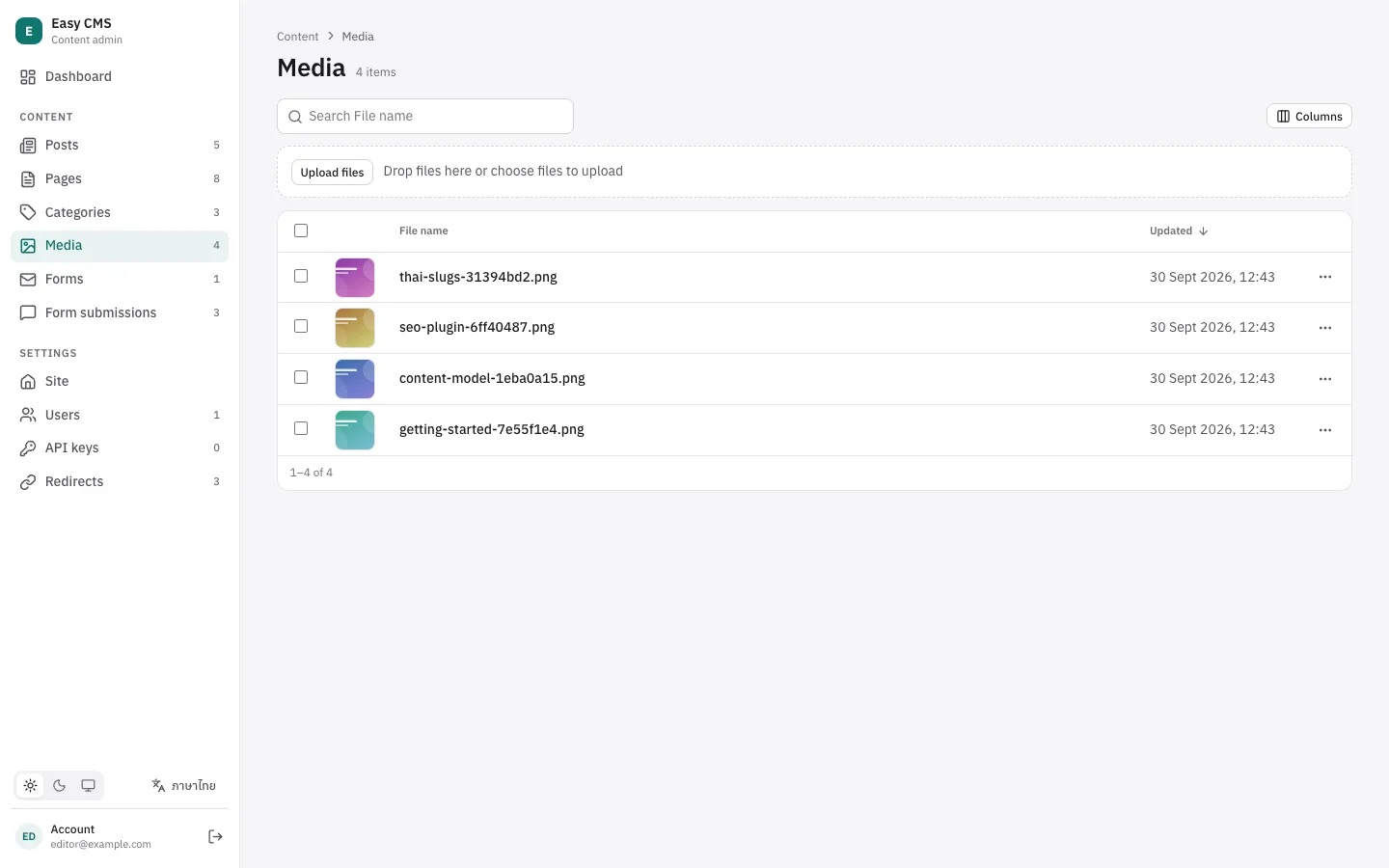
Files live in the built-in media collection. Link them with upload fields:
{ name: 'cover', type: 'upload' }Editors upload in the admin's Media library (drag and drop) or from an upload field's picker.
Uploading from code
const media = await cms.upload({ data: bytes, name: 'photo.jpg' }, { alt: 'A photo' })
media.url // "/api/cms/media/file/photo-3f9a2c1b.jpg"
Over REST: POST /api/cms/media with multipart/form-data, the file in file and other fields (like alt) as text parts.
What happens to a file
- The type is detected from the contents, not the name or the client's Content-Type. It must match
upload.mimeTypes(defaultimage/*,application/pdf). - Size is limited by
upload.maxFileSize(default 10 MB); larger files get413. - Names become
<name>-<random>.<detected extension>, so they are safe and unique, and Thai names stay readable. - Images get
widthandheight. Withsharpinstalled,upload.imageSizescreates resized copies insizes. - Deleting a media document deletes its files.
upload: {
  maxFileSize: 5 * 1024 * 1024,
  mimeTypes: ['image/*'],
  imageSizes: [
    { name: 'thumbnail', width: 400, height: 300 },
    { name: 'wide', width: 1600 },
  ],
}
A media document looks like:
{
  "id": 7,
  "filename": "photo-3f9a2c1b.jpg",
  "originalName": "photo.jpg",
  "mimeType": "image/jpeg",
  "filesize": 184213,
  "width": 2400,
  "height": 1600,
  "alt": "A photo",
  "url": "/api/cms/media/file/photo-3f9a2c1b.jpg",
  "sizes": { "thumbnail": { "width": 400, "height": 300, "url": "…" } }
}
Only alt (and fields you add) can be edited afterwards. Media metadata is readable by anyone and writable by logged-in users; declare a media collection to change that or add fields.
Serving and storage
Files are served at /api/cms/media/file/<name> with long-lived caching and a sandboxing Content Security Policy, so an uploaded SVG can't run scripts. Set serverURL for absolute URLs.
The default storage is the local disk (upload.dir, default uploads/), which needs a persistent filesystem. On serverless hosts (Vercel, Netlify) and in containers without a volume, use S3.
S3, Cloudflare R2 and MinIO
npm install @easy-cms/storage-s3pnpm add @easy-cms/storage-s3yarn add @easy-cms/storage-s3bun add @easy-cms/storage-s3import { s3Storage } from '@easy-cms/storage-s3'
export default defineConfig({
// …
upload: {
storage: s3Storage({ bucket: 'my-site-media', region: 'eu-central-1' }),
},
})Credentials come from AWS_ACCESS_KEY_ID and AWS_SECRET_ACCESS_KEY (and AWS_SESSION_TOKEN, AWS_REGION) unless you pass accessKeyId / secretAccessKey. They are read when the CMS starts, so building without them works.
| Option | Default | |
|---|---|---|
bucket | required | Bucket name |
region | AWS_REGION, then us-east-1 | auto for Cloudflare R2 |
endpoint | AWS S3 | For S3-compatible services, e.g. https://<account>.r2.cloudflarestorage.com |
prefix | none | Folder for the objects, e.g. media/ |
publicUrl | none | Serve files from here (CDN or public bucket) instead of through the API |
forcePathStyle | true with endpoint | <endpoint>/<bucket>/<key> addressing |
Cloudflare R2:
s3Storage({
  bucket: 'my-site-media',
  region: 'auto',
  endpoint: `https://${process.env.R2_ACCOUNT_ID}.r2.cloudflarestorage.com`,
  accessKeyId: process.env.R2_ACCESS_KEY_ID,
  secretAccessKey: process.env.R2_SECRET_ACCESS_KEY,
})
The access key needs s3:PutObject, s3:GetObject and s3:DeleteObject on the bucket.
Private bucket (default). Without publicUrl, files are streamed through /api/cms/media/file/<name> with the same caching and sandboxing headers as local storage, so the bucket stays private. Put a CDN in front of your site to avoid fetching from S3 on every request.
Public bucket. With publicUrl, media URLs point to the bucket or CDN directly and your server is not involved. Serve it from a different domain than your site: the sandboxing Content Security Policy is not applied there, so an uploaded SVG could otherwise run scripts with your site's origin.
Custom storage
Implement StorageAdapter (put, get, delete, optional url and init) and pass it as upload.storage.
Next steps
- Rich text: images in rich text.
- Backups & upgrades: back up uploads.